General
The General settings include options for SSL/TLS, Custom CA certificates, and Cookies. You can customize how cookies are handled by choosing to store and send them automatically, or simply uncheck the box if you prefer not to store cookies.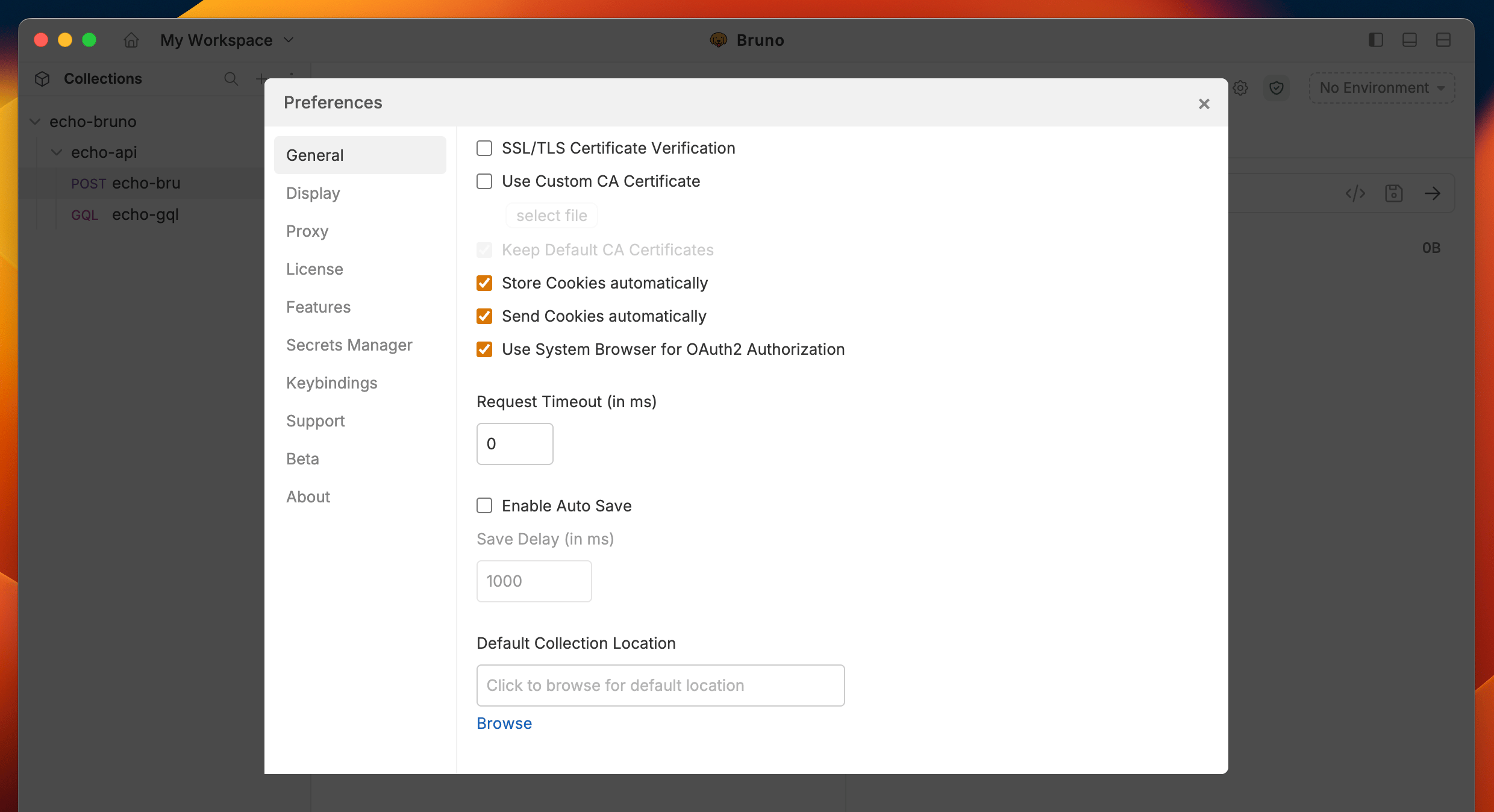
Themes
Bruno offers a variety of themes to personalize your workspace. You can choose from different color schemes to match your preference and enhance your visual experience while working with APIs.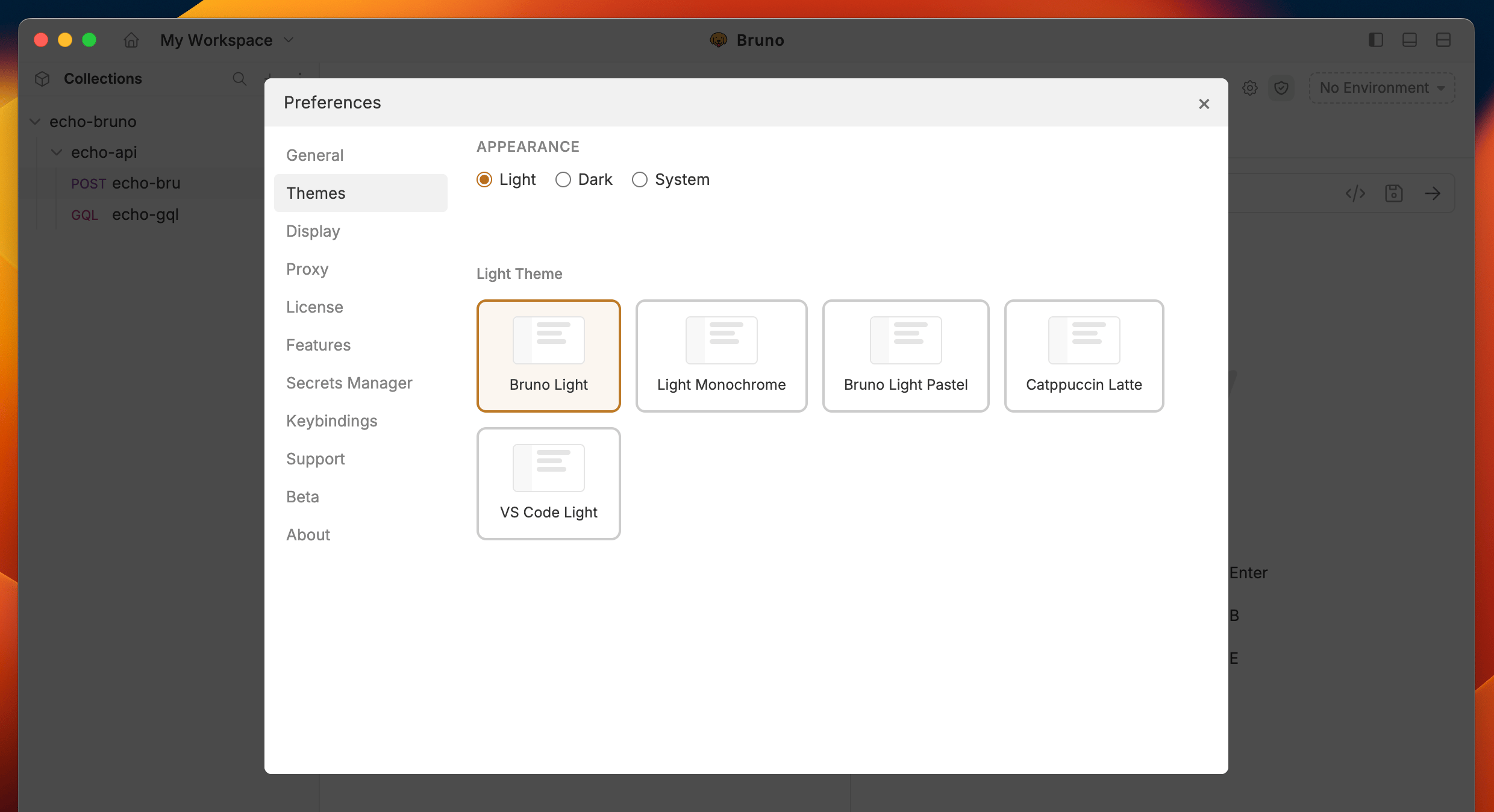
Display
In the Display section, you can control the appearance of the Bruno, choosing between Dark, Light, or System mode, based on your preference. Additionally, you can customize the code editor font to suit your style.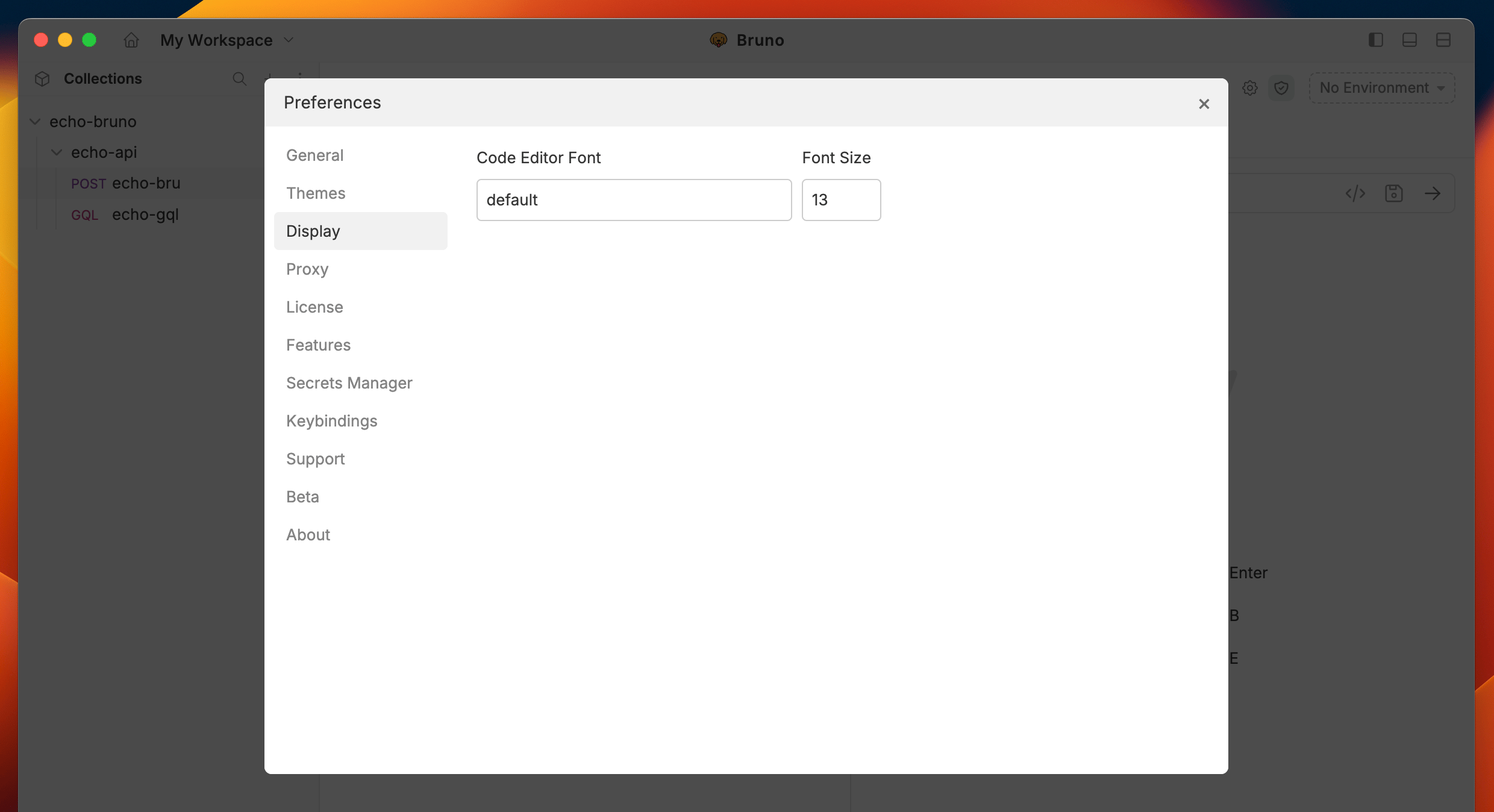
Proxy
You can customize the Proxy settings by selecting On, Off, or System, depending on your needs. For more details, you can refer to the Proxy guide here to learn more. By default, the Proxy setting is Off in Bruno.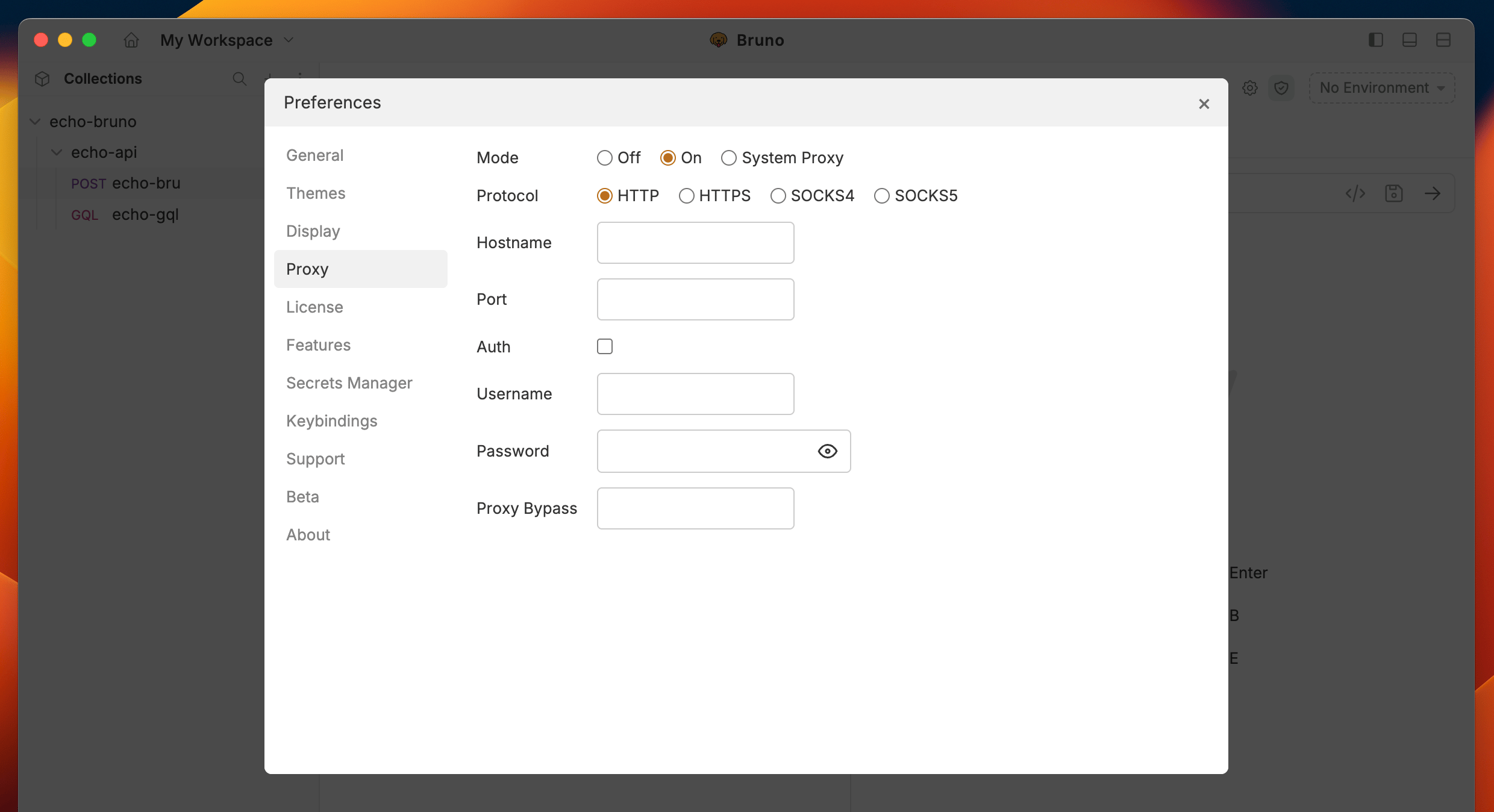
License
Bruno offers Ultimate and Pro plans for premium users. You can refer to the Licensing guide to learn more about the features and benefits of each plan.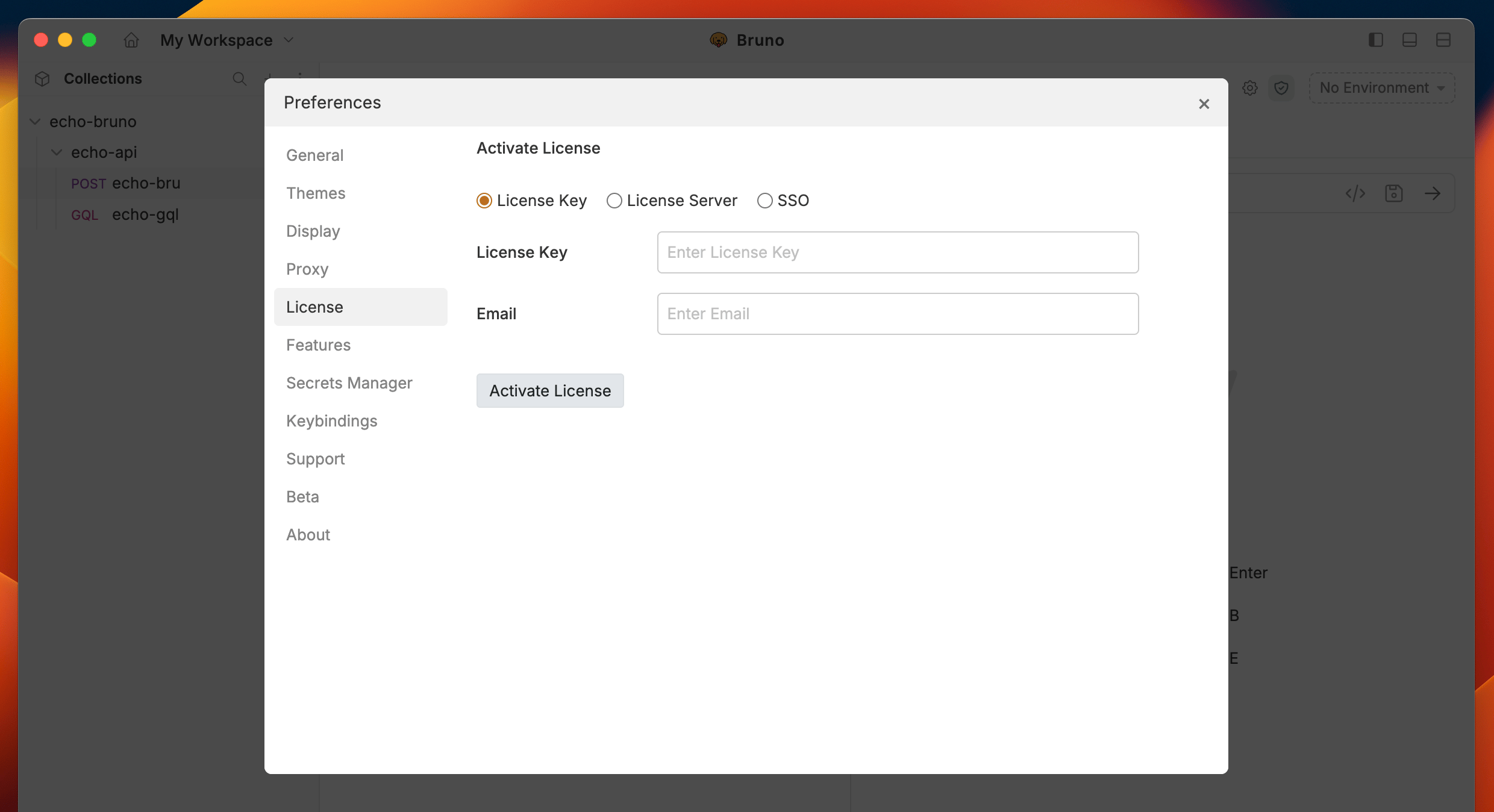
Keybindings
The Keybindings section lets you view, customize, and manage keyboard shortcuts in Bruno. Shortcuts are organized by category and automatically adapt to your operating system (macOS uses⌘ while Windows/Linux uses Ctrl).
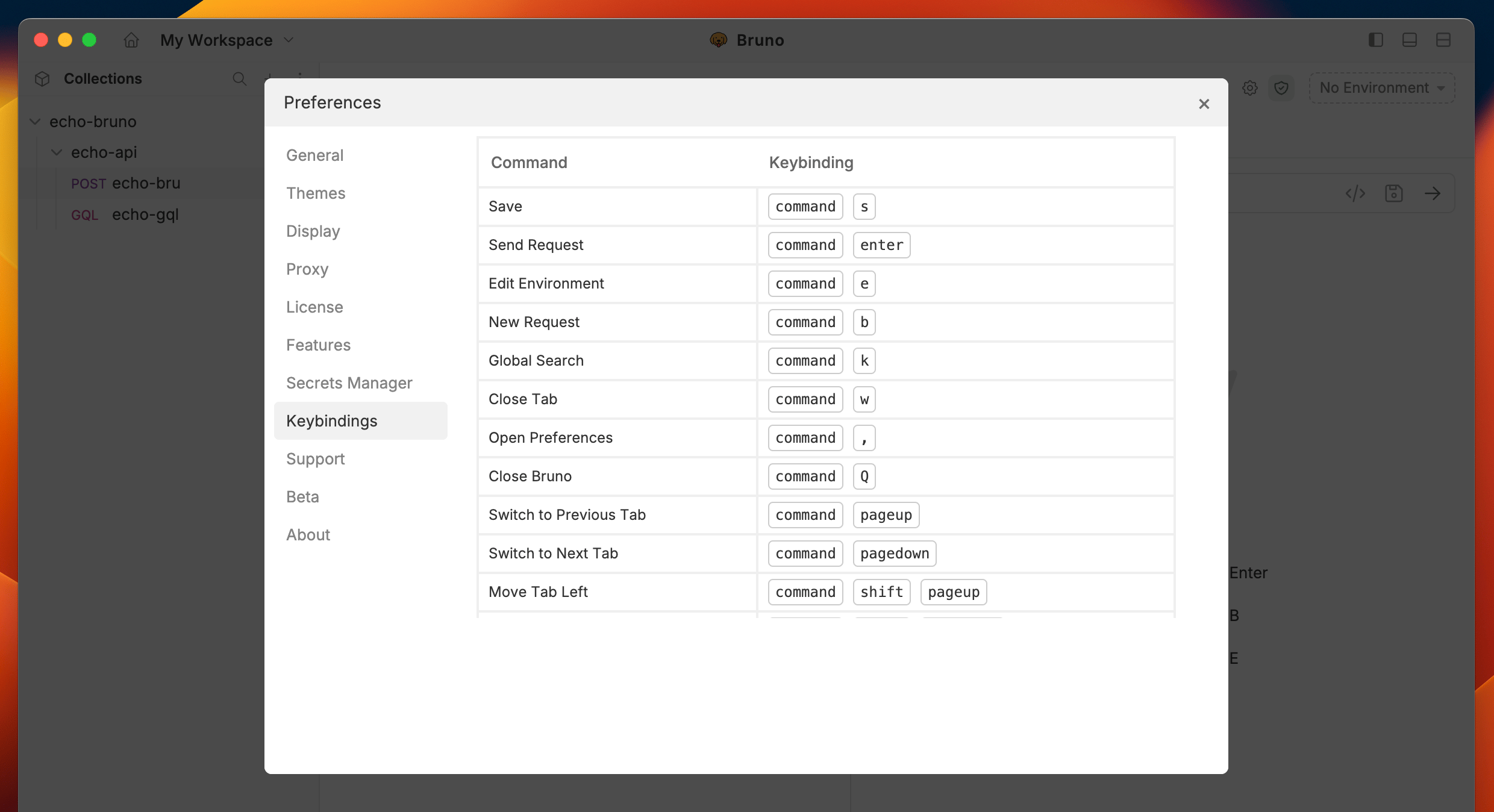
Default keyboard shortcuts
Below are the default keyboard shortcuts. macOS equivalents replaceCtrl with ⌘.
Tabs
Sidebar
Requests
Collections and environment
Search
View
Developer tool
Others
Customizing keybindings
You can remap most keyboard shortcuts to your preferred key combinations.- Open Preferences > Keybindings.
- Click on the row of the shortcut you want to change.
- Press your desired key combination. Bruno validates the input in real time and shows an error if the combination is invalid (for example, if it conflicts with another shortcut or is reserved by the OS).
- Release the keys to save. A checkmark confirms the change was applied.
Backspace or Delete, then enter a new combination.
Some shortcuts are marked as read-only (indicated by a lock icon) and cannot be remapped.
Resetting keybindings
- Reset a single shortcut — hover over a customized shortcut and click the reset icon that appears to restore it to the default value.
- Reset all shortcuts — click the Reset Default button at the top of the keybindings panel to restore all shortcuts to their defaults.
Disabling keybindings
Use the toggle at the top of the keybindings panel to enable or disable all keyboard shortcuts at once. When disabled, the shortcut table is grayed out and no shortcuts are active.Secrets
There are three primary ways to manage secrets in Bruno, which you can learn about in the Secret Management Overview. This setting controls the integration with a Vault for secret management, which is available in Bruno Ultimate Edition.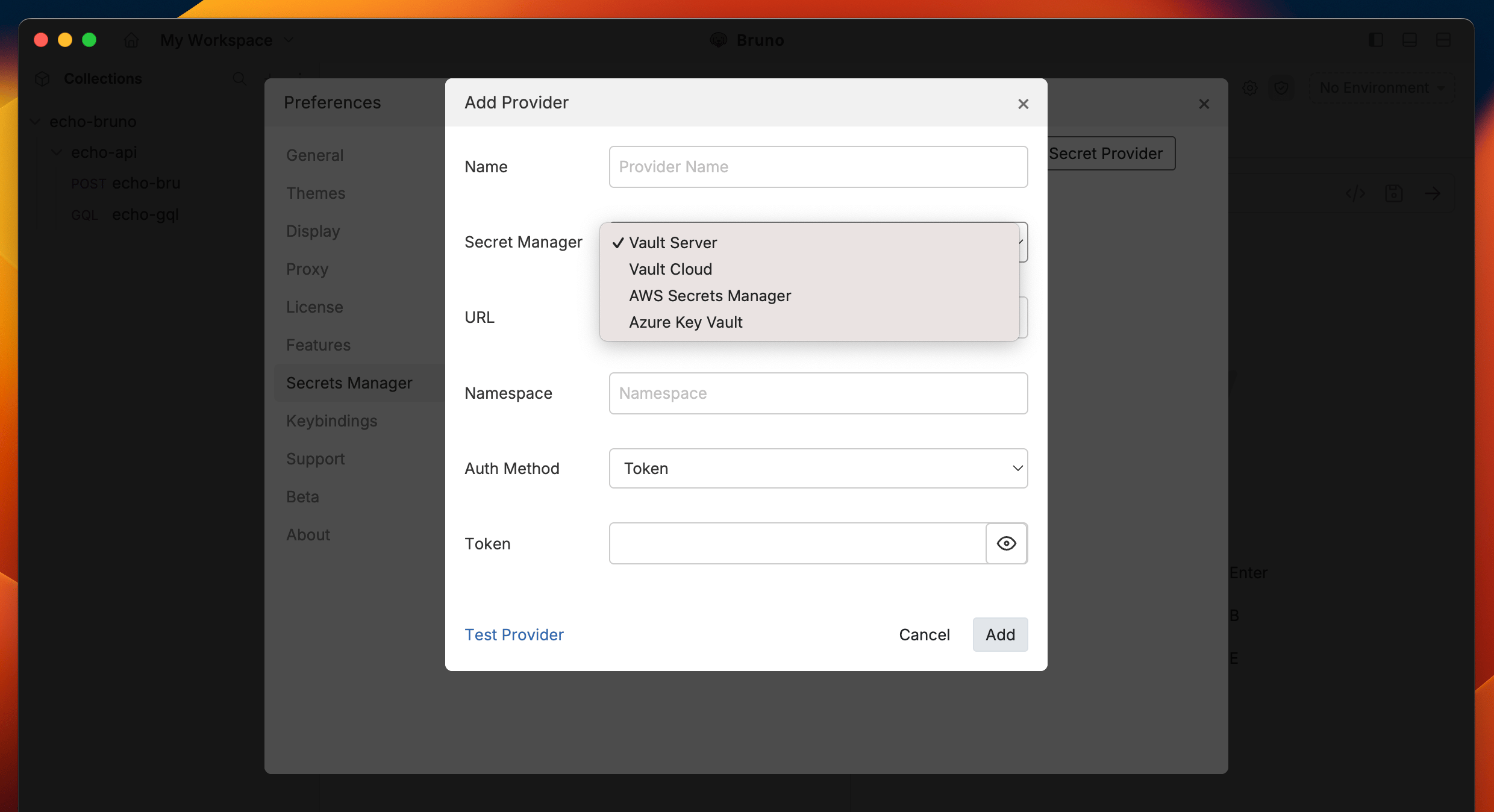
Support
If you encounter issues or need assistance, you can access a range of troubleshooting resources to help resolve your problem quickly.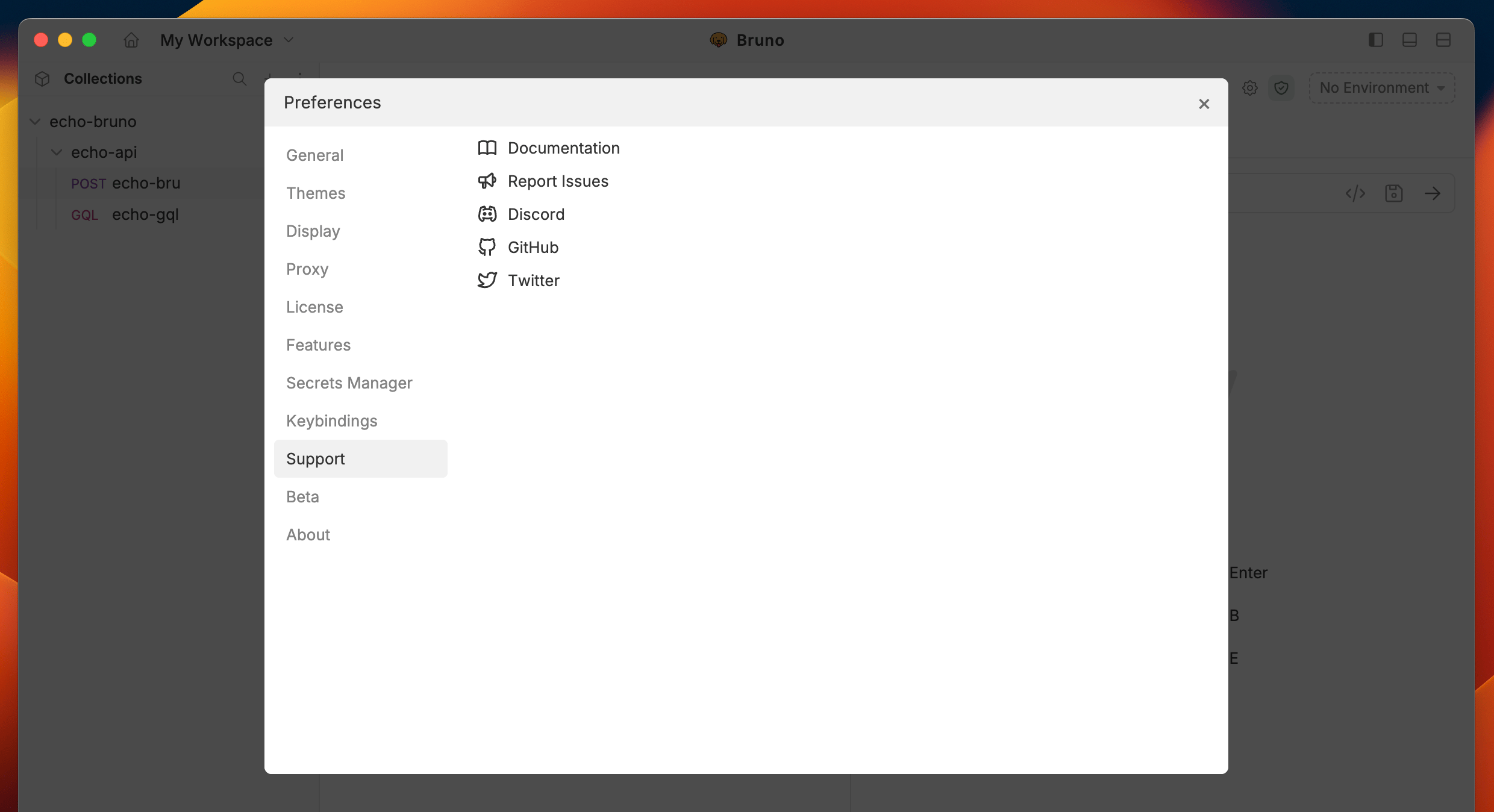
About
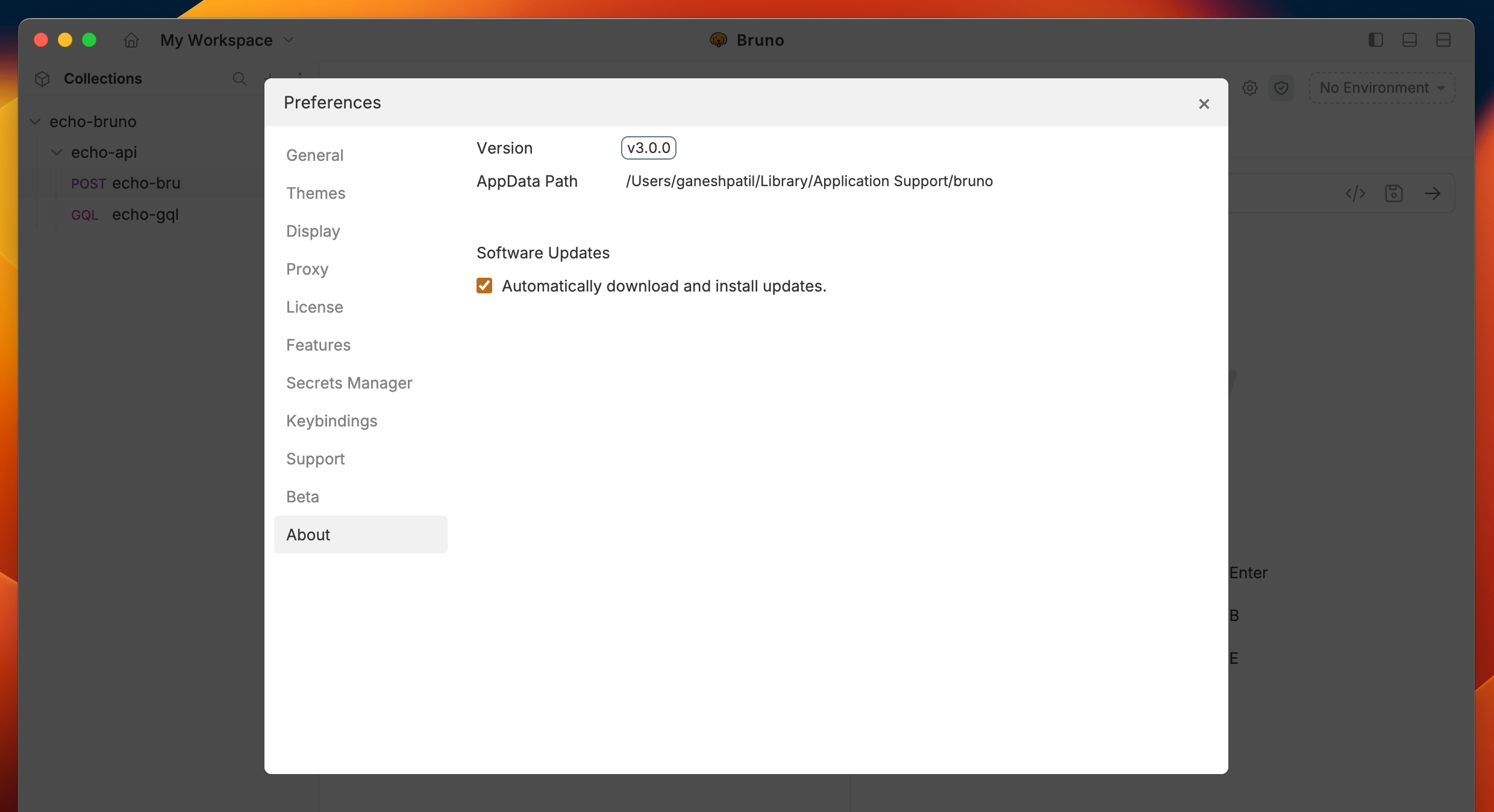
View application details and enable the auto-update feature to keep your app up to date automatically.